Client is having API integration with giftee can get the transaction report via Giftee for Business Portal, https://portal.giftee-biz.asia/
Here is the guide for better understanding:
Step 1: Accessing the Campaign
- Log in to the giftee for Business Portal.
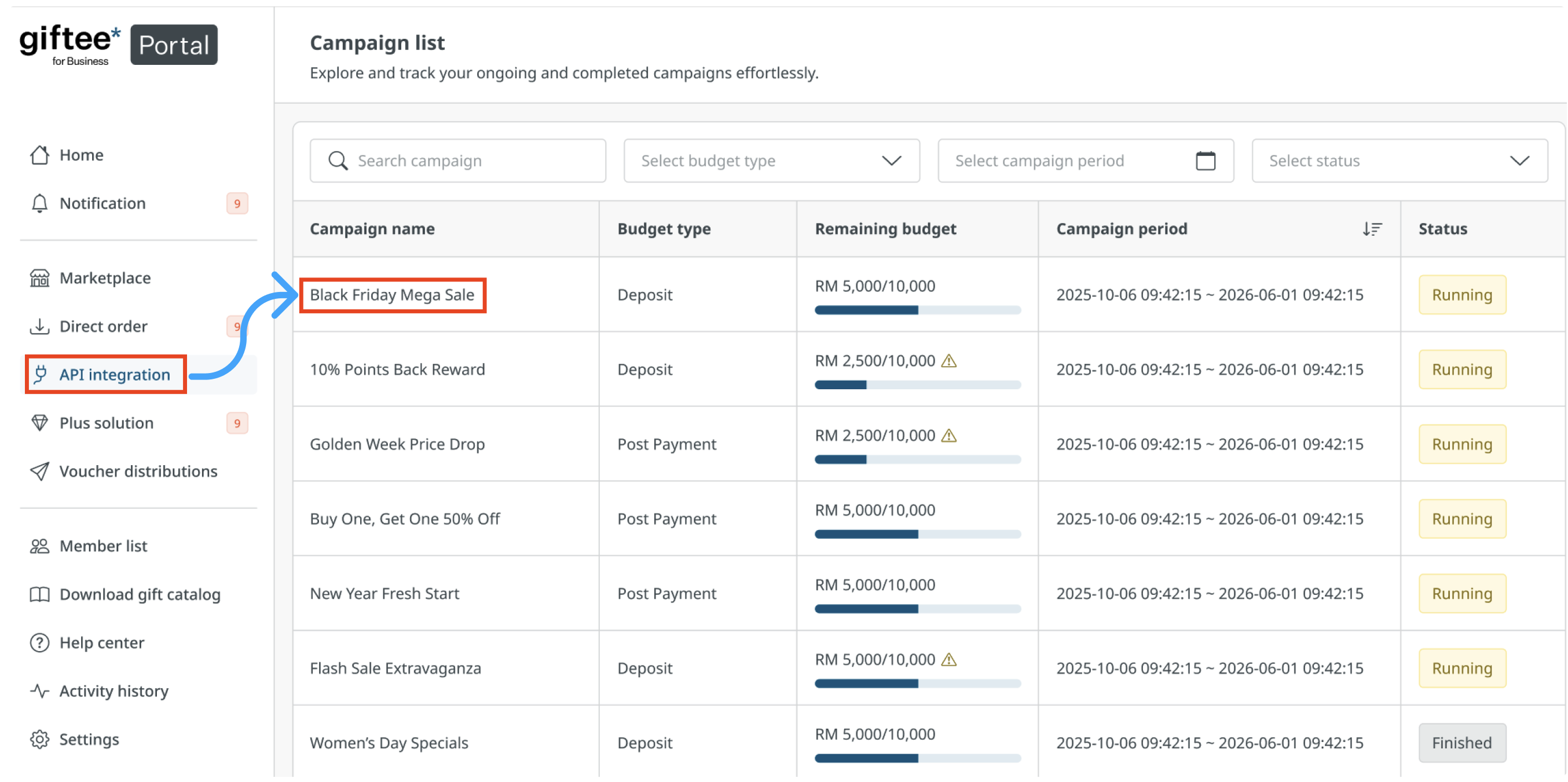
- From the left-hand menu, click on API integration.
- Select the specific campaign you wish to view (e.g., "Black Friday Mega Sale").
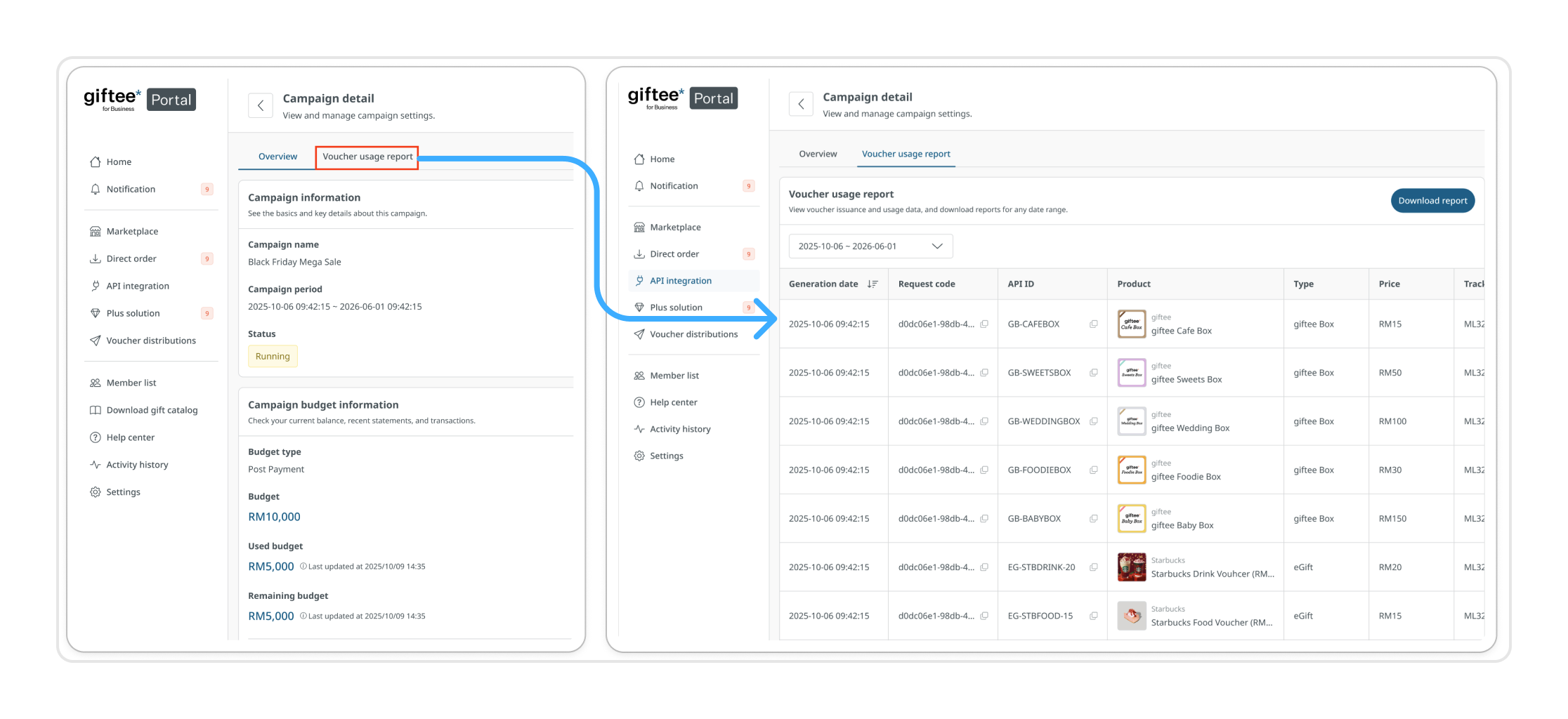
4. You will land on the Overview page. Click the Voucher usage report tab next to it.
Step 2: Filtering by Date Range
Before viewing the data, you can narrow down the results to a specific timeframe:
- Locate the Date Selector dropdown
- Choose from preset options: Last month, This month, or Last week.
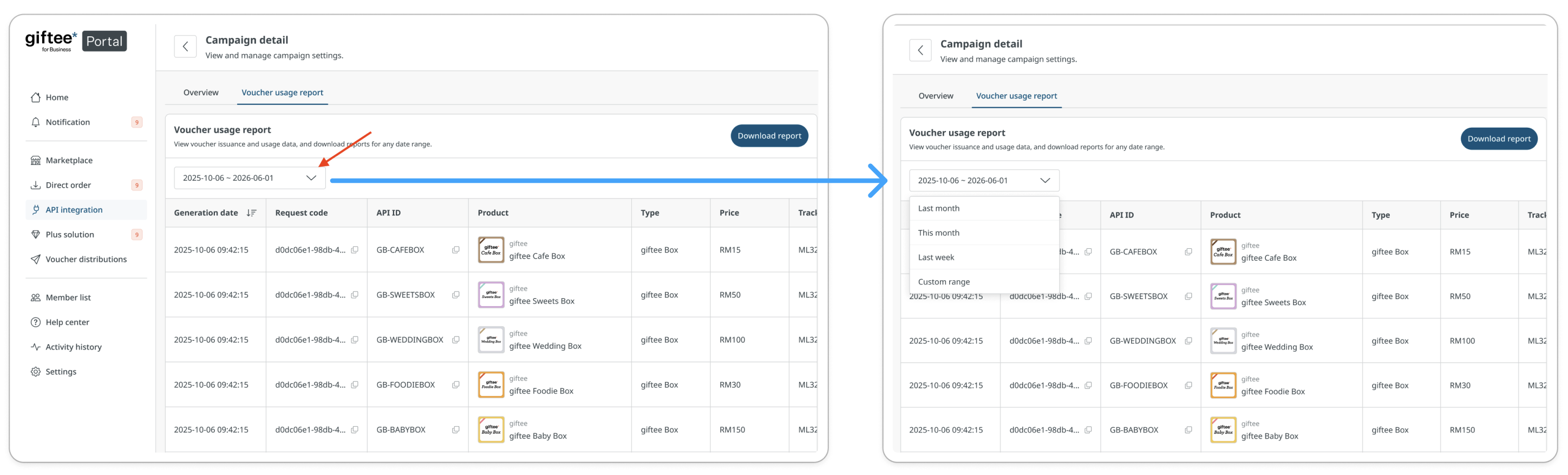
3. Select Custom range to pick a specific start and end date manually.
Note:
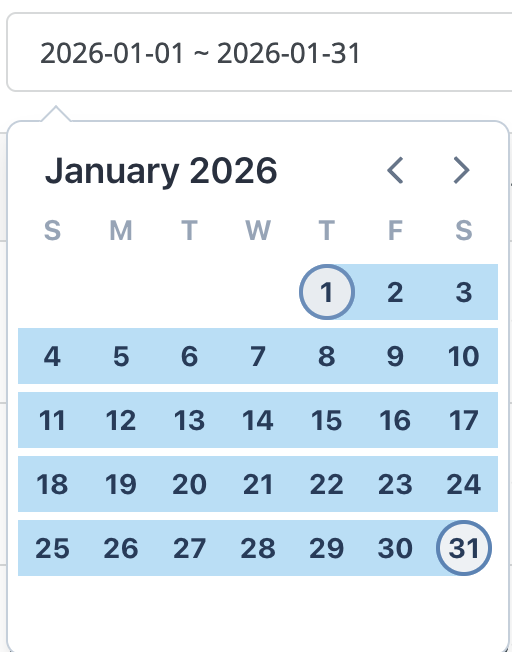
- Default Time Range: Last Month (e.g., January 1 – January 31)
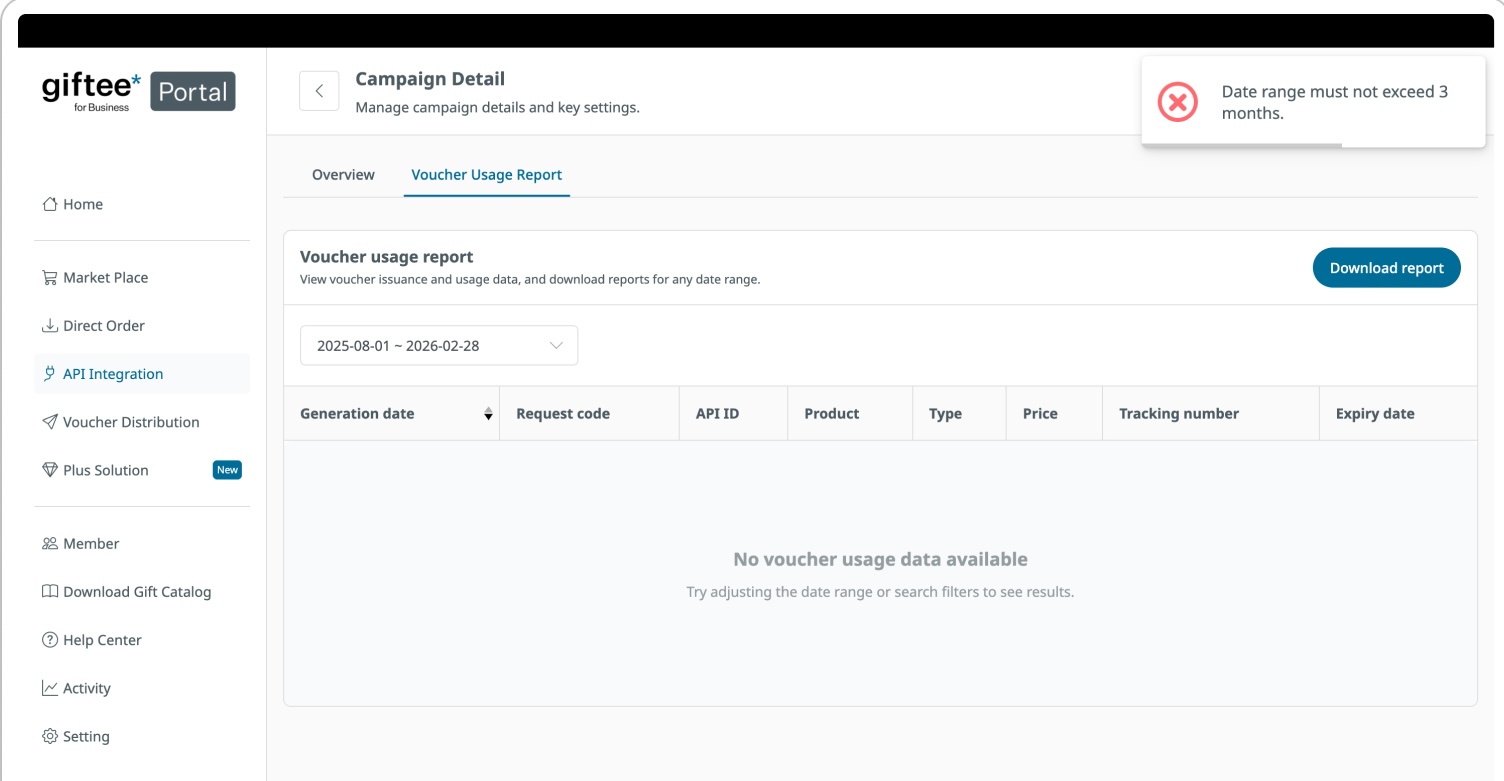
- Limitation: The system supports report generation for a maximum date range of 3 months per request.
- If a selected date range exceeds 3 months, the system will not process the report and shows a notification
Step 3: Report Data Table
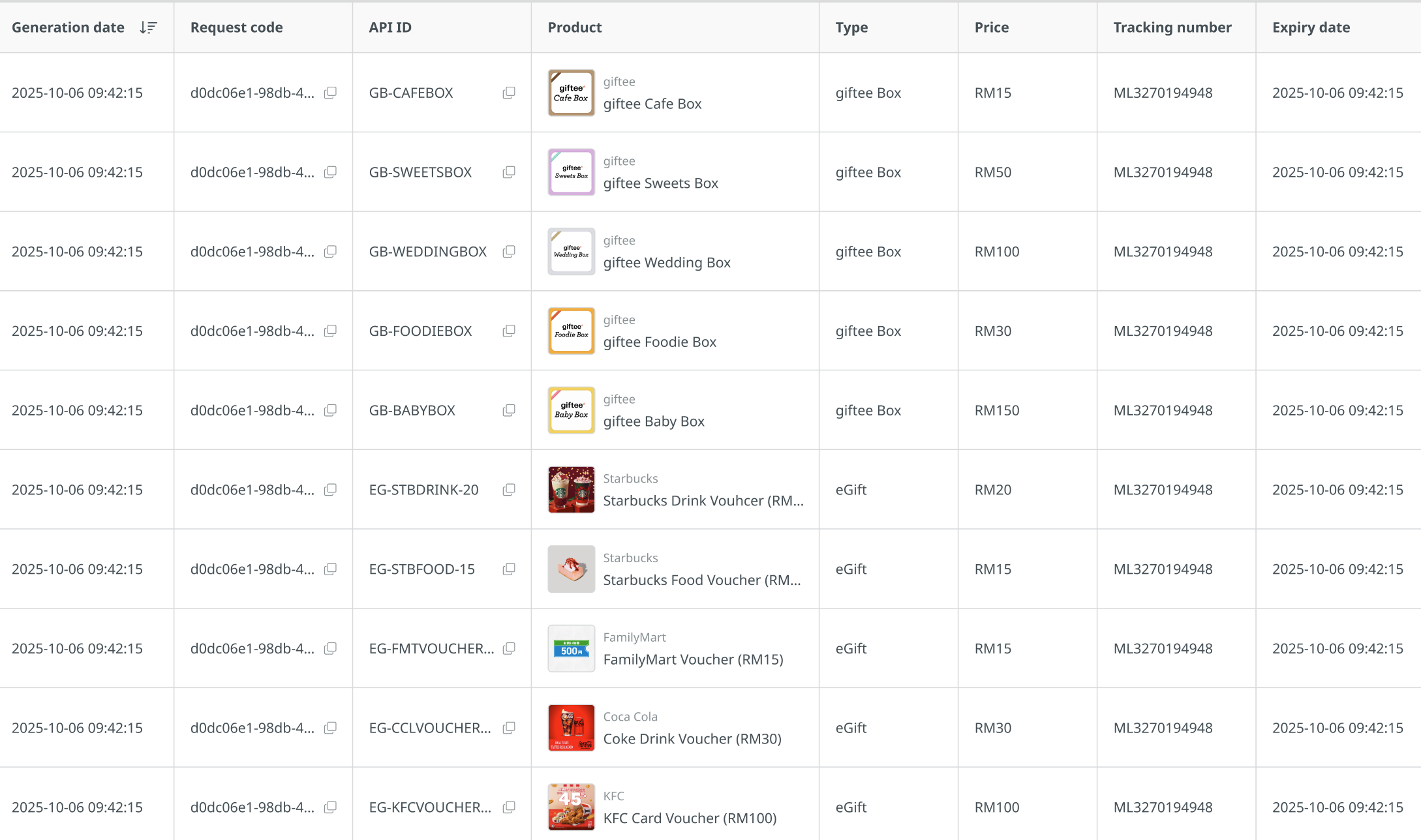
The report displays a table with the following key information:
- Generation date: The exact date and time the voucher was created.
- Request code: Unique identifiers used by your technical team to track the specific API call.
- API ID: A unique identifier assigned to each product, used when calling the API.
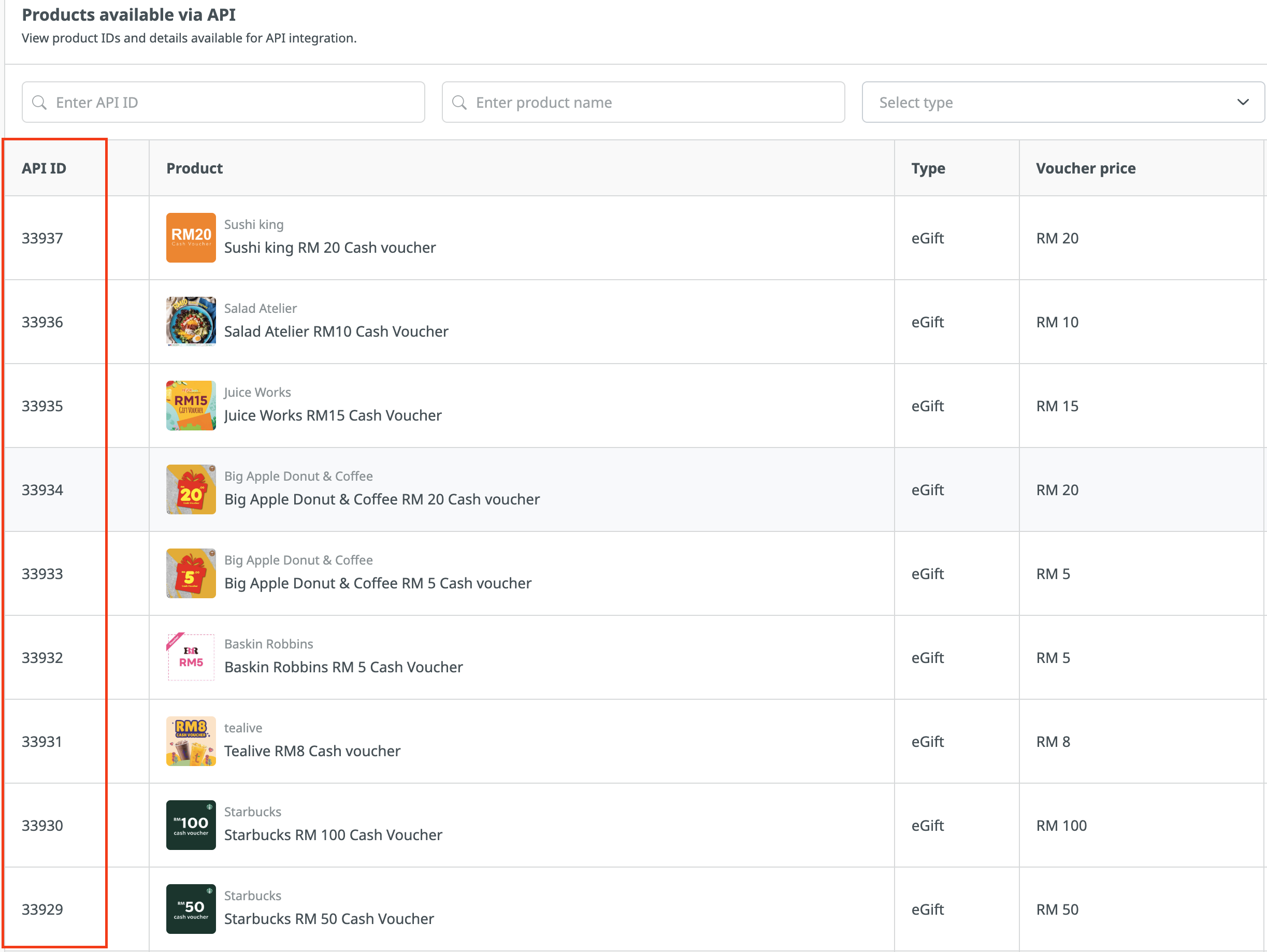
- Product: The name and brand of the gift (e.g., Starbucks Drink Voucher, giftee Cafe Box).
- Type: Categorizes the gift (e.g., "eGift" for single vouchers or "giftee Box" for multi-choice options).
- Price: The monetary value of the voucher issued.
- Tracking number: The unique reference number for that specific gift unit.
- Expiry date: When the voucher will no longer be valid for the recipient.
Step 4: Downloading the Report
If you need to work with this data in Excel or another tool:
- Apply your desired date filters.
- Click the Download report button located at the top right of the section.
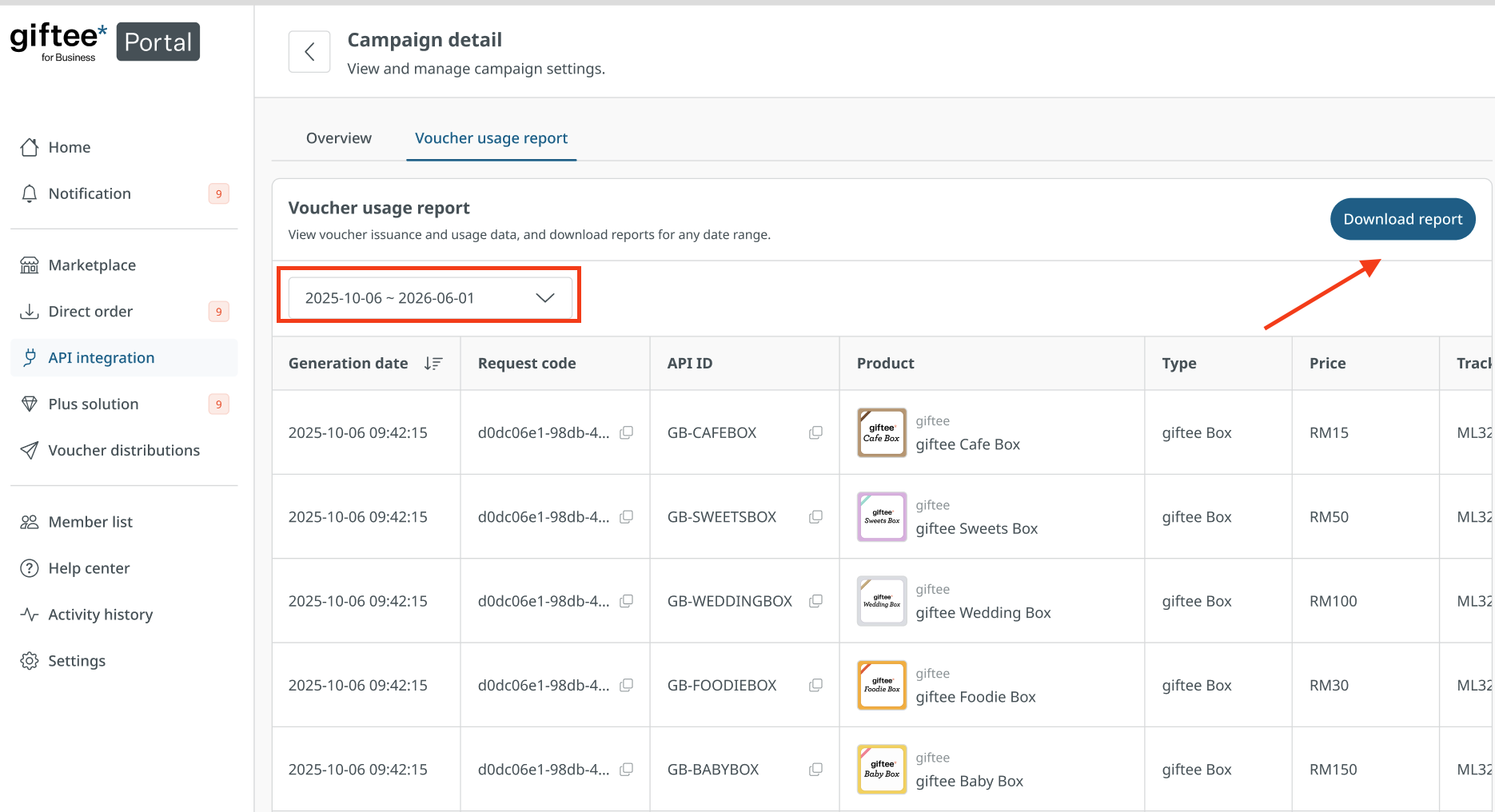
3. The system will generate a CSV file containing all the filtered transaction records.

Note:
Since voucher status is not part of the standard data shared with clients, it has been excluded from the report.
Should this data be mandatory for a particular client, please request it from account manager.
Was this article helpful?
That’s Great!
Thank you for your feedback
Sorry! We couldn't be helpful
Thank you for your feedback
Feedback sent
We appreciate your effort and will try to fix the article